

Life takes you to more than one place, and now your Lugg can too.
Maybe you’re picking up a Facebook Marketplace find, dropping off donations, grabbing a plant from a nursery, or swinging by your storage unit on the way to your new place. Maybe you found a vintage dresser or a mid-century coffee table on Craigslist and want everything picked up in one haul. Or maybe you just bought a bookshelf, a dining table, and a new couch from different stores and want them all delivered together.
Real moves aren’t always point-A-to-point-B, and now your Lugg doesn’t have to be either.
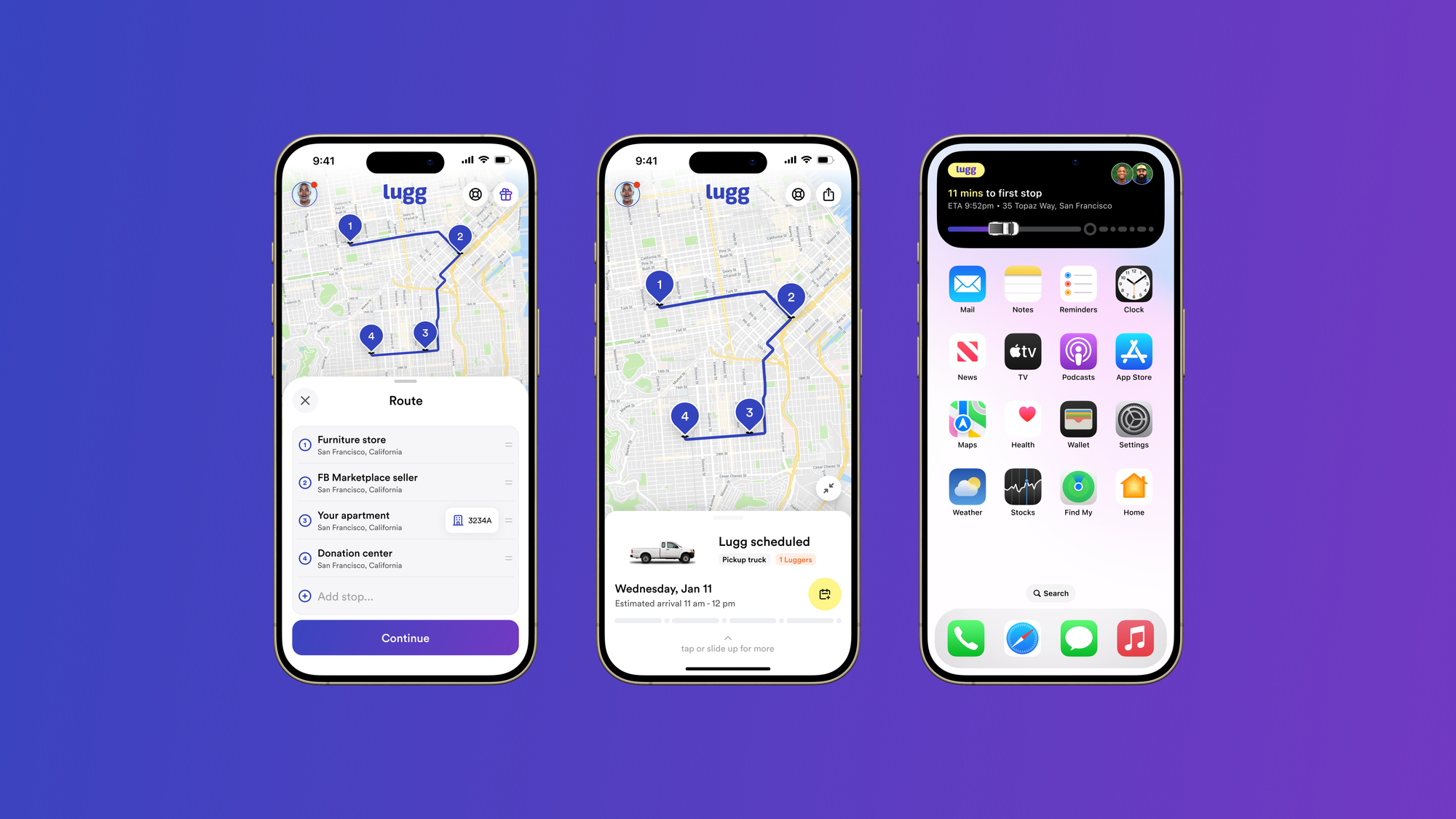
Today, we’re excited to introduce Multiple Stops, a new update that lets you add extra pickups and drop-offs to your Lugg so you can do more in one trip. It’s a small change with a big impact, because moving isn’t always linear. Sometimes life takes you a few extra places, and now Lugg can too.
Why we built Multiple Stops (based on real customer feedback)
For years, customers have asked for more flexibility, especially on busy days when life doesn’t fit neatly into a single pickup and drop-off. “I wish I could just add one more stop” became one of our most common requests.
You wanted a simpler way to manage moves and deliveries with multiple pickups or multiple destinations, without booking a second Lugg and juggling separate trips.
So we built it.
Multiple Stops is the direct result of feedback from the people who use Lugg the most. It’s something our system couldn’t support before, but as we’ve grown, we’ve invested in smarter routing tools to make moving easier, smoother, and more intuitive.
We believe moving should fit your life, not the other way around. This update gives you the freedom to move the way you actually move.
How to add multiple stops to your Lugg
Adding extra pickups and drop-offs is easy and completely flexible:
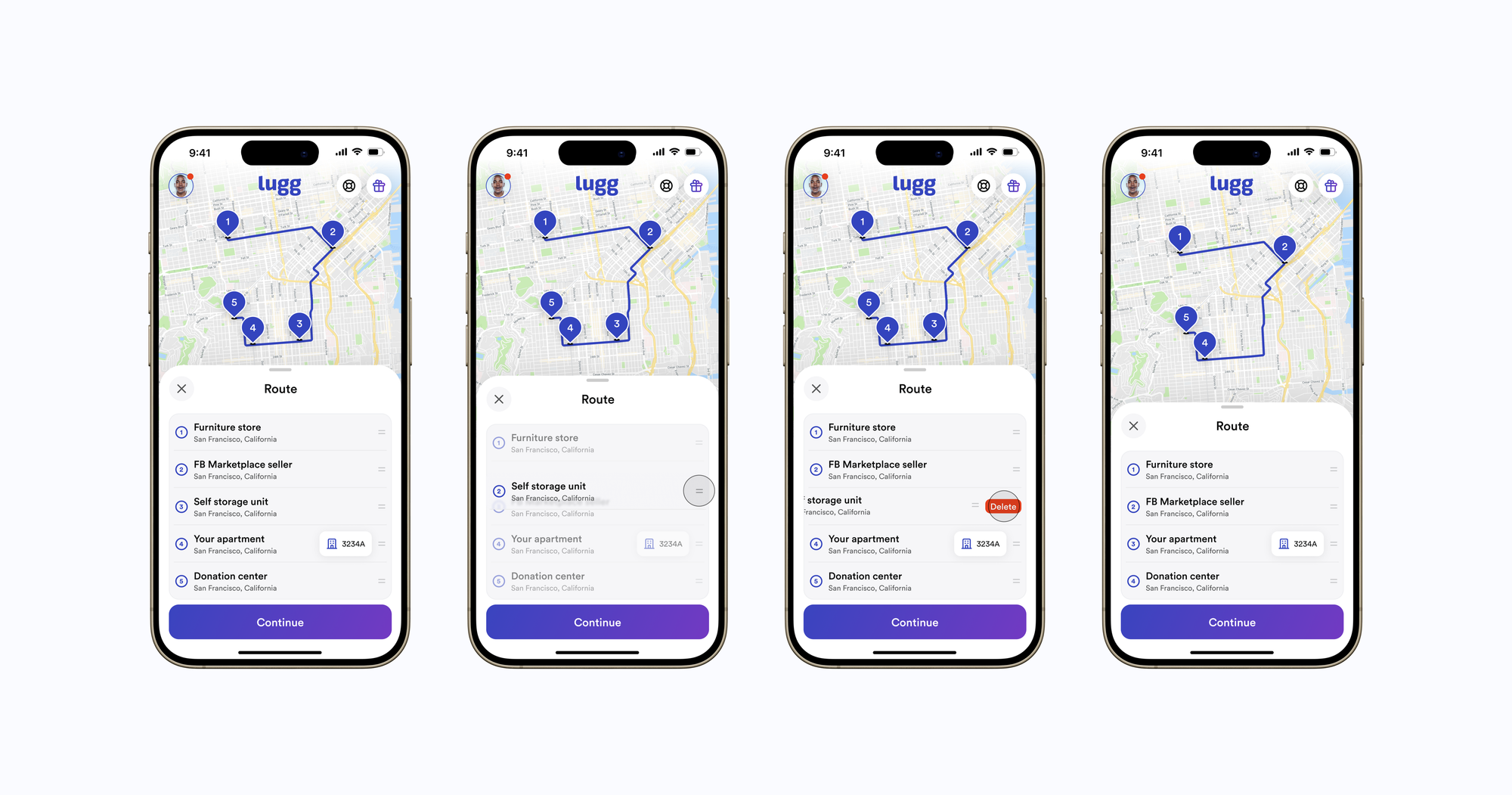
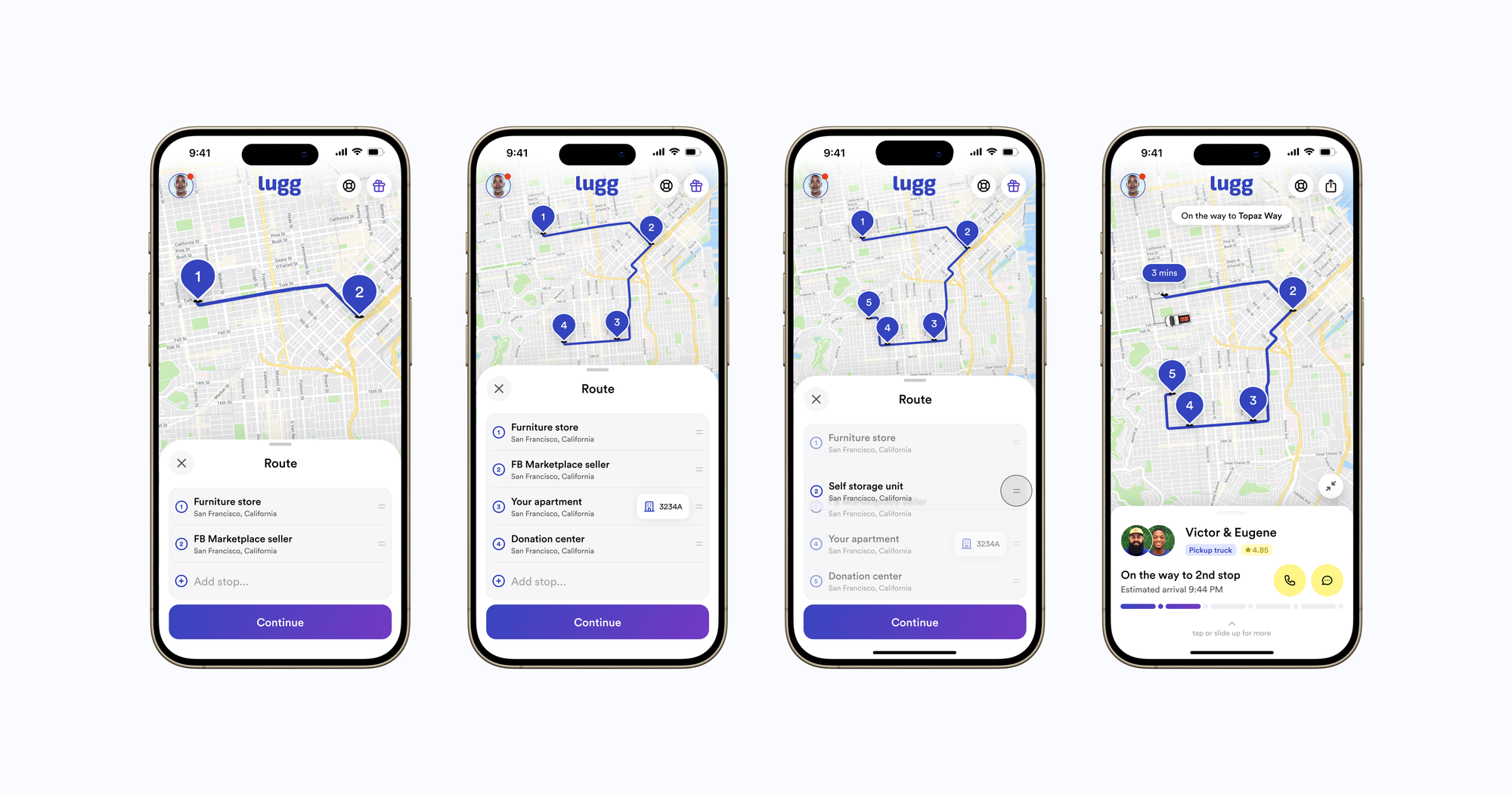
- Open the Lugg app or website Enter your first pickup and drop-off addresses as usual.
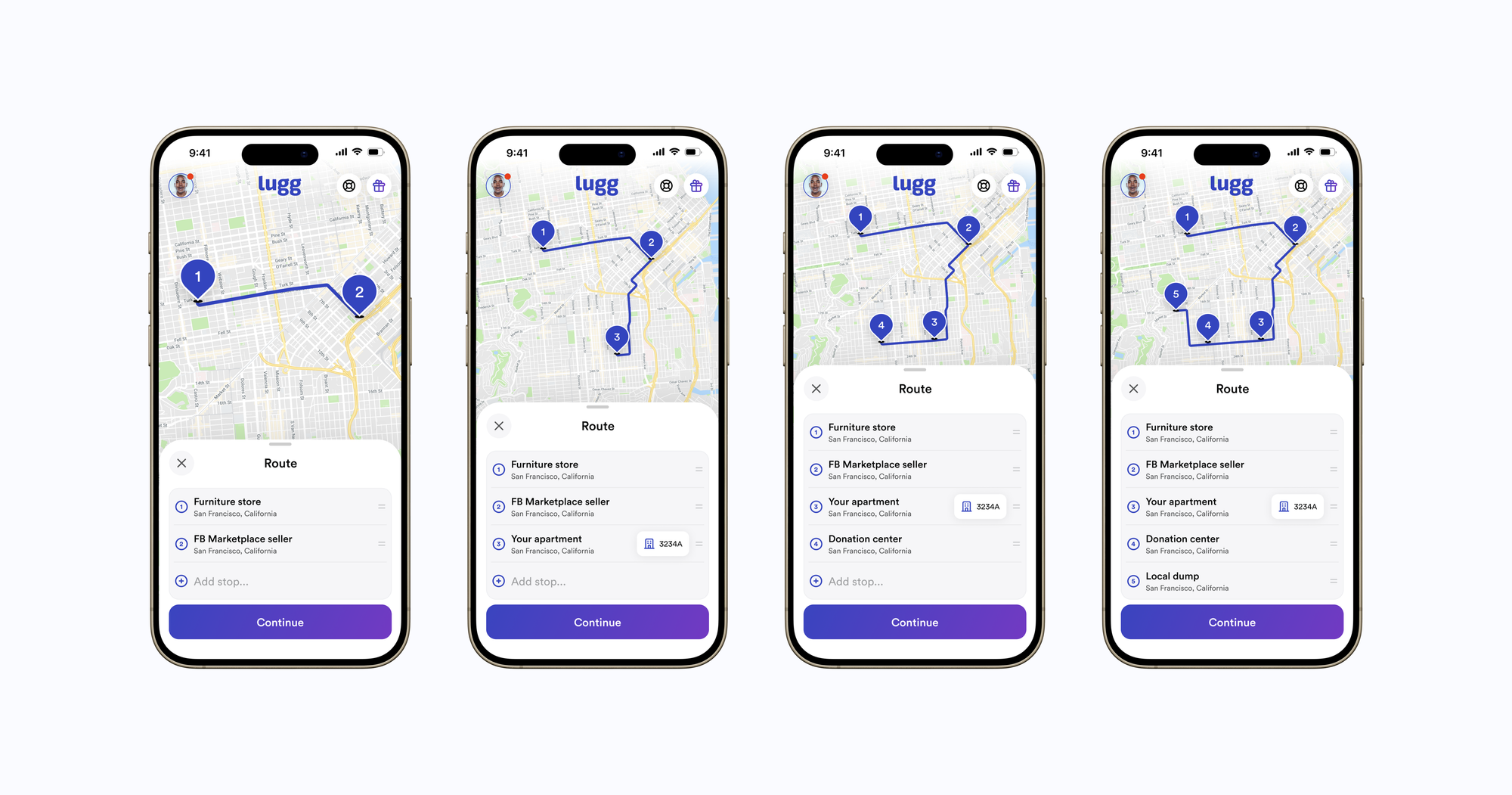
- Tap “Add stop..”Add your additional stops and enter any extra addresses—up to 5 total stops per booking.
- Rearrange or edit your routeDrag and drop to rearrange your stops or delete a location if plans change.
- Book your Lugg Review your route, confirm, and your Luggers handle the rest.
- Track your multi-stop Lugg in real time
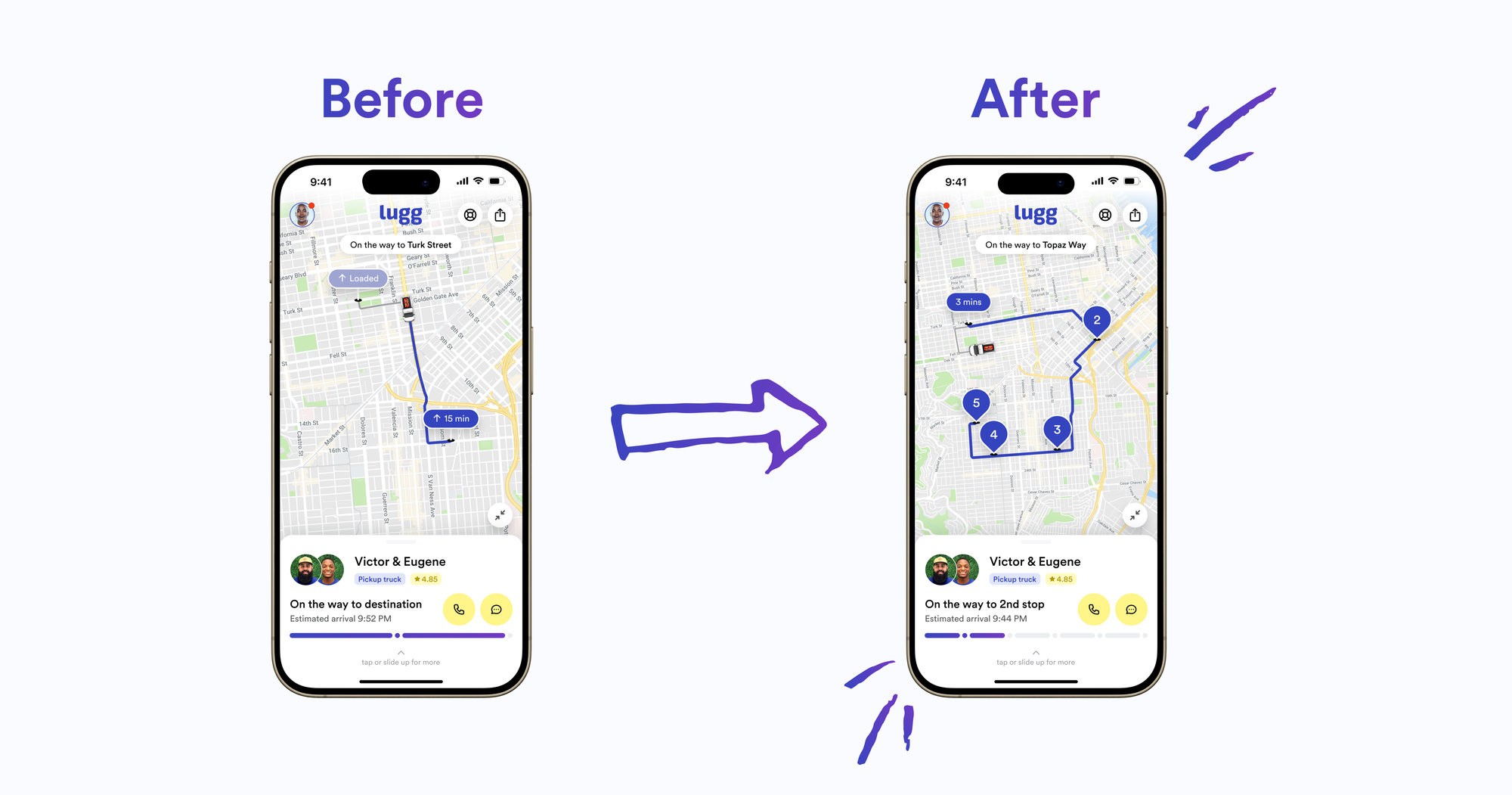
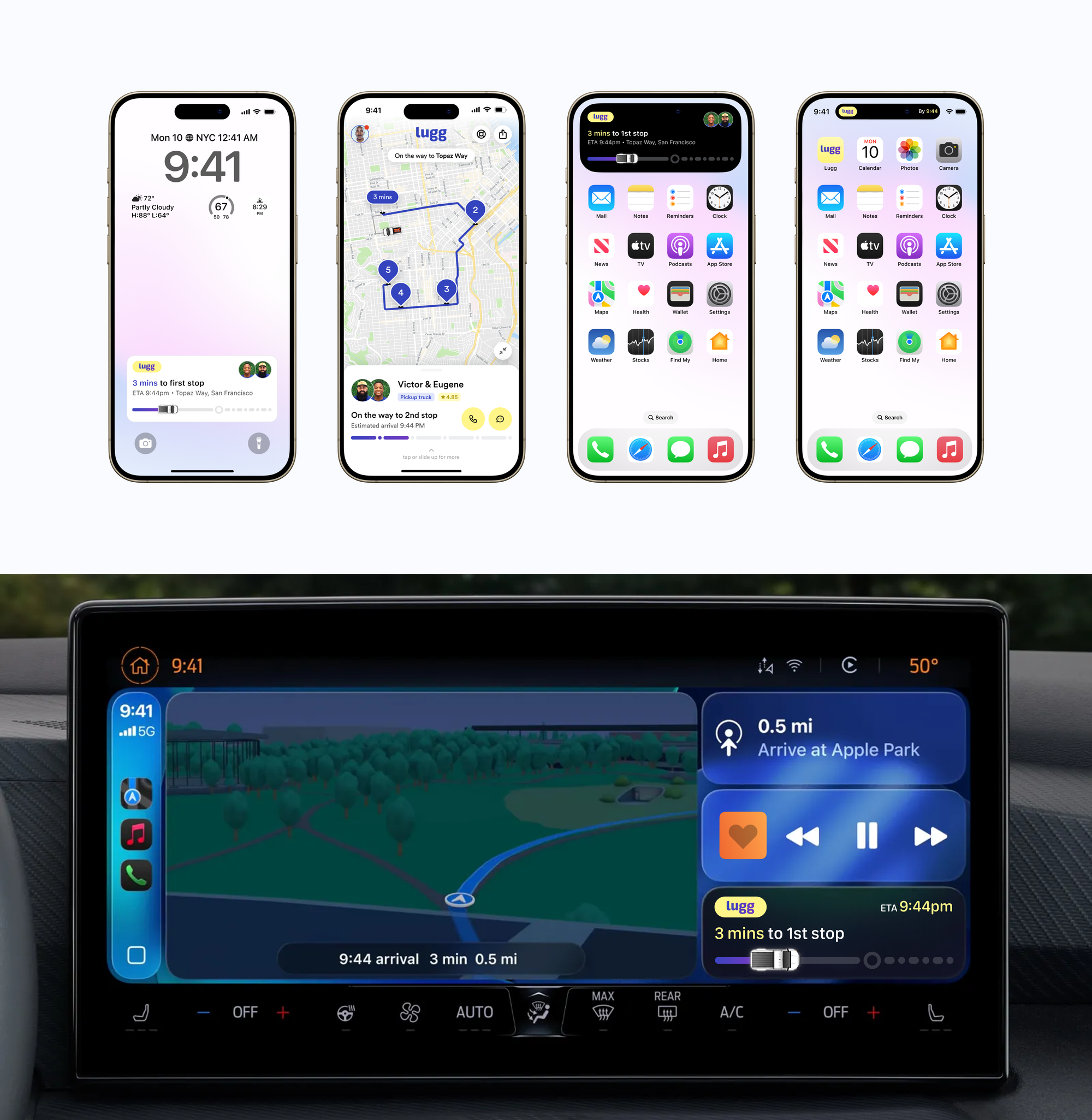
Follow your multi-stop move with Live Tracking. If you have the Lugg app, you’ll see your crew’s progress through each stop. Your tracking link is also included in your confirmation email, and we text it to you once your crew is en route. iPhone users can also track their Lugg with Live Activities right from the Lock Screen, CarPlay, MacBook, or Apple Watch.
That’s it. No juggling multiple bookings or separate trips. Just a few taps and your multi-stop move is ready to roll.
Discover how easy it is to plan, edit, and track your entire route with Lugg’s new Multiple Stops feature.
Ways people are already using multiple stops
Real-life moves have layers, twists, and last-minute changes. Multiple stops help you handle it all in one trip. Here are a few ways people are already using it:
- Thrifted and Marketplace finds – Pick up a dresser from a Facebook Marketplace seller and swing by a Craigslist seller for matching nightstands, all in one trip.
- Store deliveries from multiple retailers – Buying furniture, appliances or plants from different stores? Add each one as a stop and get everything delivered together.
- Storage unit moves – Need to grab a few items from storage before moving into your new place—or drop some things off on the way out? Add your storage unit as a stop and streamline the whole day.
- Donation drop-offs – Clearing out before a move or making room for something new? Add a Goodwill, Habitat for Humanity, or other local charity donation center as a stop along the way.
- New furniture or appliances in, old items out – Getting a new couch, mattress, refrigerator, or washer delivered, and need to clear out the old one? Add a stop so your Luggers can make a quick drop-off at a local donation center, recycling facility, or disposal site after your store pickup.
- Friends and family run – Moving something to a friend’s house or splitting items from one home to another? Add those extra stops and get it all done in one booking.
No matter how you move, Multiple Stops helps you plan your day your way. You’ll save time, cut down on hassle, and keep your move as flexible as real life.
What you can (and can’t) do with Multi-Stop Luggs
We built Multiple Stops to give you more flexibility, and we’re continuing to improve it. Here’s what’s possible today and what’s still on the way.
You can:
- Add up to 5 stops per booking
- Rearrange your route before booking
- Edit or delete stops after booking, but before your Lugg begins, if plans change
You can’t (yet):
- Edit stops once your Lugg is already in progress: If something comes up mid-move or delivery, reach out to our support team through Live Chat in the Lugg app or on lugg.com, or contact your Luggers directly for help with address updates.
This is just the beginning. We’re rolling out even more flexibility and smarter routing tools over time.
How pricing works when you add Multiple Stops
Multiple Stops is designed to be flexible and transparent. As you add extra pickups or drop-offs, your price updates instantly, so you always see your full upfront estimate before you book.
Standard Lugg pricing
If you’re booking a regular Lugg, adding extra stops doesn’t come with a per-stop fee. Your estimate adjusts automatically based on:
- Truck selected
- Total route mileage
- Estimated labor time at each stop
Your updated estimate appears instantly as you add, remove, or rearrange stops.
Fixed-price retail deliveries
If you’re booking with one of our fixed-price retail partners, you can still use Multiple Stops. Each additional stop includes a flat per-stop fee based on your vehicle type. This per-stop fee is automatically included in your upfront estimate as soon as you add extra stops.
Want the full pricing breakdown?
See the complete Standard Lugg and Fixed-Price Partner pricing details in the Pricing FAQ in our Help Center.
Your full estimate, including route updates, labor time, and partner per-stop fees, will always be displayed before you book. No surprises.
Add extra stops to your next move
Every Lugg update starts with feedback from the people who use it the most: your comments, your stories, and your move-day moments. Multiple Stops is another step toward making moving easier, smarter, and more convenient.
Ready to plan your next move your way? Update your Lugg app or book now at lugg.com to start adding multiple stops. One booking, one Lugg crew, and one smooth, efficient route. That's moving made easier.
Frequently Asked Mulitple Stop Questions
Q: How many stops can I add to one Lugg?
A: You can add up to 5 stops per Lugg. Each stop can be a pickup, drop-off, store, apartment donation, storage unit, disposal site, or any other location.
Q: Can I change my stops after I book?
A: Yes. You can edit or rearrange your stops before your Lugg begins. Once your crew is en route, stops can’t be changed by you, but Lugg Support or your Luggers can assist with address updates.
Q: Does adding multiple stops change the price?
A: Yes. Your price updates automatically as you add stops, based on route distance, truck, and time. Your updated price appears in your upfront estimate before you book.
Q: Does Lugg support multiple pickups from different Marketplace sellers?
A: Yes. You can add multiple pickups from Facebook Marketplace, Craigslist, OfferUp, or individual seller addresses as stops.
Q: Can Lugg handle multiple donation drop-offs or junk removal hauls?
A: Yes. You can add donation centers, recycling facilities, or disposal sites as stops for old furniture, appliances, or bulky items.
Q: Can I add my storage unit as a stop?
A: Absolutely. You can add a storage unit to pick up items before a move or drop things off on the way.
Q: How do I track my multi-stop Lugg?
A: All Luggs include real-time tracking. If you have the Lugg app, your route updates as your crew completes each stop. If you don’t have the app, your tracking link is included in your confirmation email and sent again by text when your crew is en route. iPhone users get Live Activities for tracking from their Lock Screen, CarPlay, MacBook, or Apple Watch.
Q: Is Multiple Stops available for all truck types and in all regions?
A: Yes. Multiple Stops works with every Lugg truck type and is available in all Lugg regions.